Field notes · Google Flow · September 4, 2026
Four Omni showcases worth stealing the method from
A flat logo becomes a macro reveal. A waveform closes into a clean loop. Paper scenery starts to breathe. Google Flow's latest Omni thread is useful because every clip begins with a production decision, not a magic adjective.
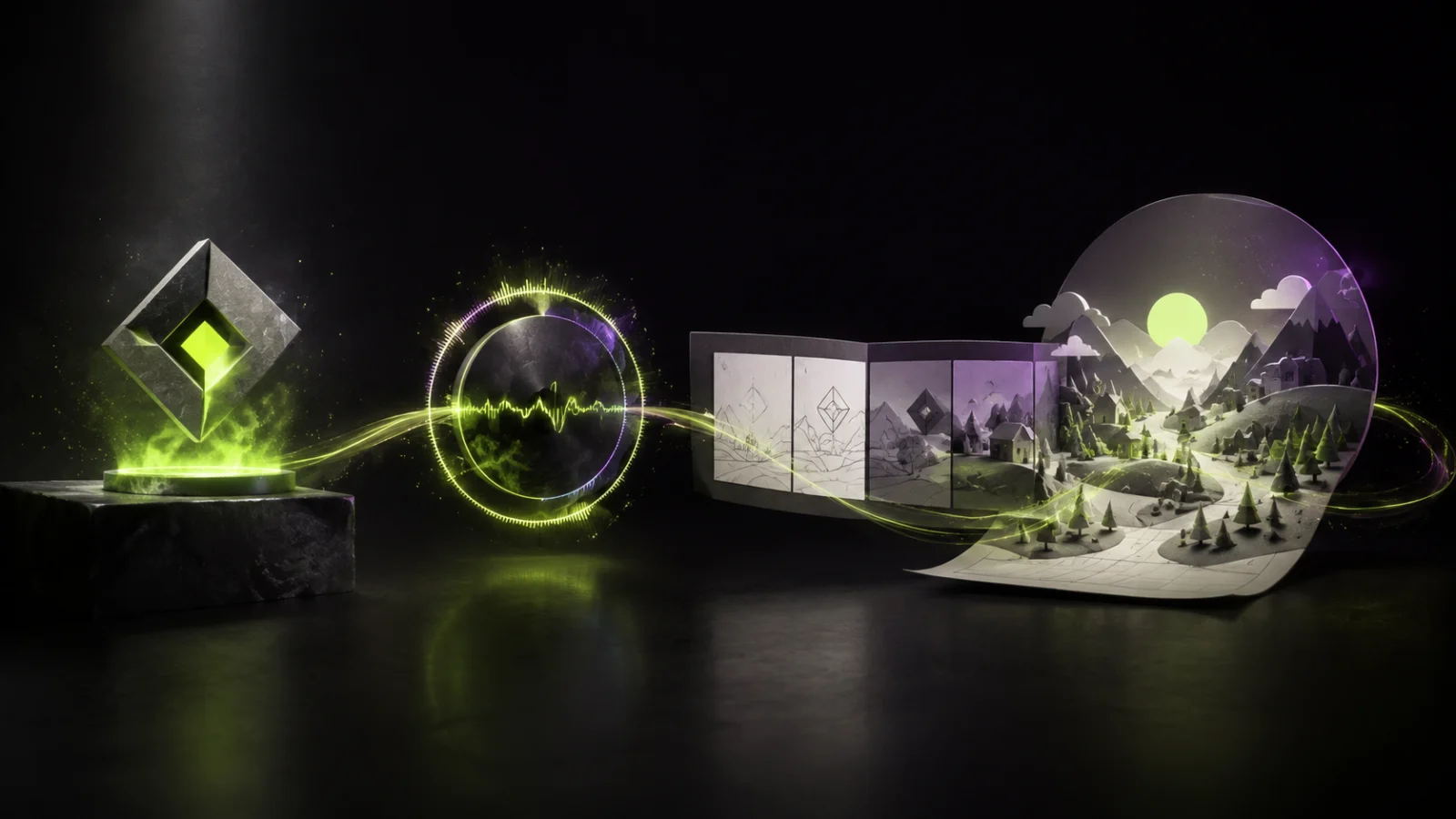
The four ideas are immediately usable: animate a mark from real brand material, design a loop around matching endpoints, treat a storyboard as a shot plan, or add restrained motion to finished artwork. The source is Google Flow's showcase thread.
Do not copy the surface style. Copy the constraint behind it. A reference image carries exact color and shape better than another paragraph of prompt text; an endpoint makes a loop possible; a storyboard settles the sequence before generation starts.
The four working briefs
One source asset, one motion job, one thing that must stay fixed
Make the logo reveal feel made from the brand
Google's first example uses brand imagery as a reference. That matters more than describing a palette from memory. Prepare a clean logo and one flat color or material reference, then ask for a single controlled reveal rather than a montage.
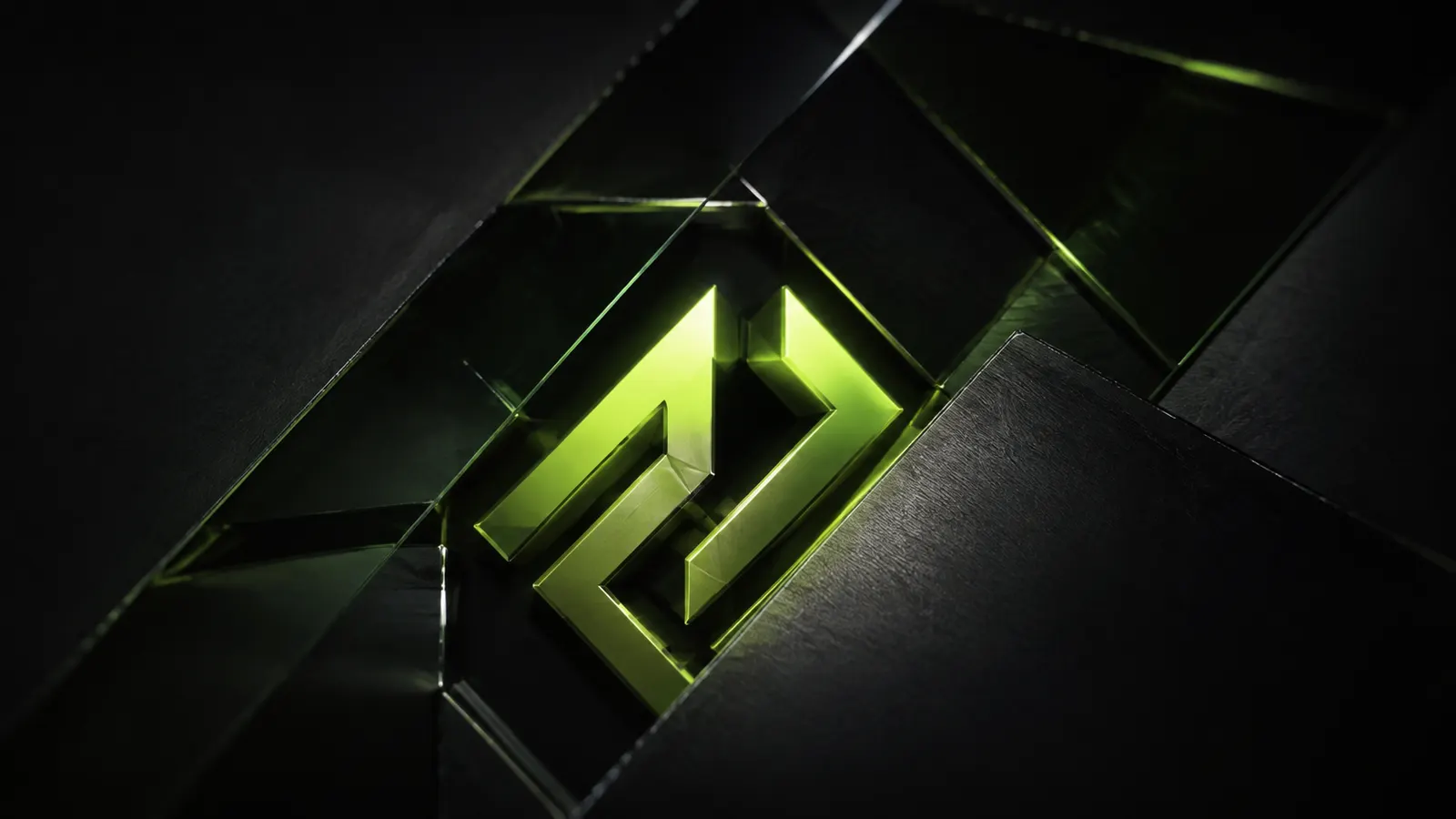
- Use a high-resolution mark with quiet space around it.
- Keep lettering, proportions and colors explicitly locked.
- Choose one material and one camera move.
Reveal this brand mark in one controlled macro shot. Preserve its lettering, colors, proportions and composition. Build the reveal from the supplied material reference, with restrained camera movement. Do not rewrite text or add symbols.
In UlazAI, generate or upload the source in Image Studio, then choose Brand intro under “Make this move with Omni.” You can edit the prefilled brief before spending credits.
Design the loop before you design the spectacle
Flow's music visualizer example uses first and last frames to close the motion. The useful lesson is structural: the ending must arrive at the same composition, camera position and motion phase as the opening.
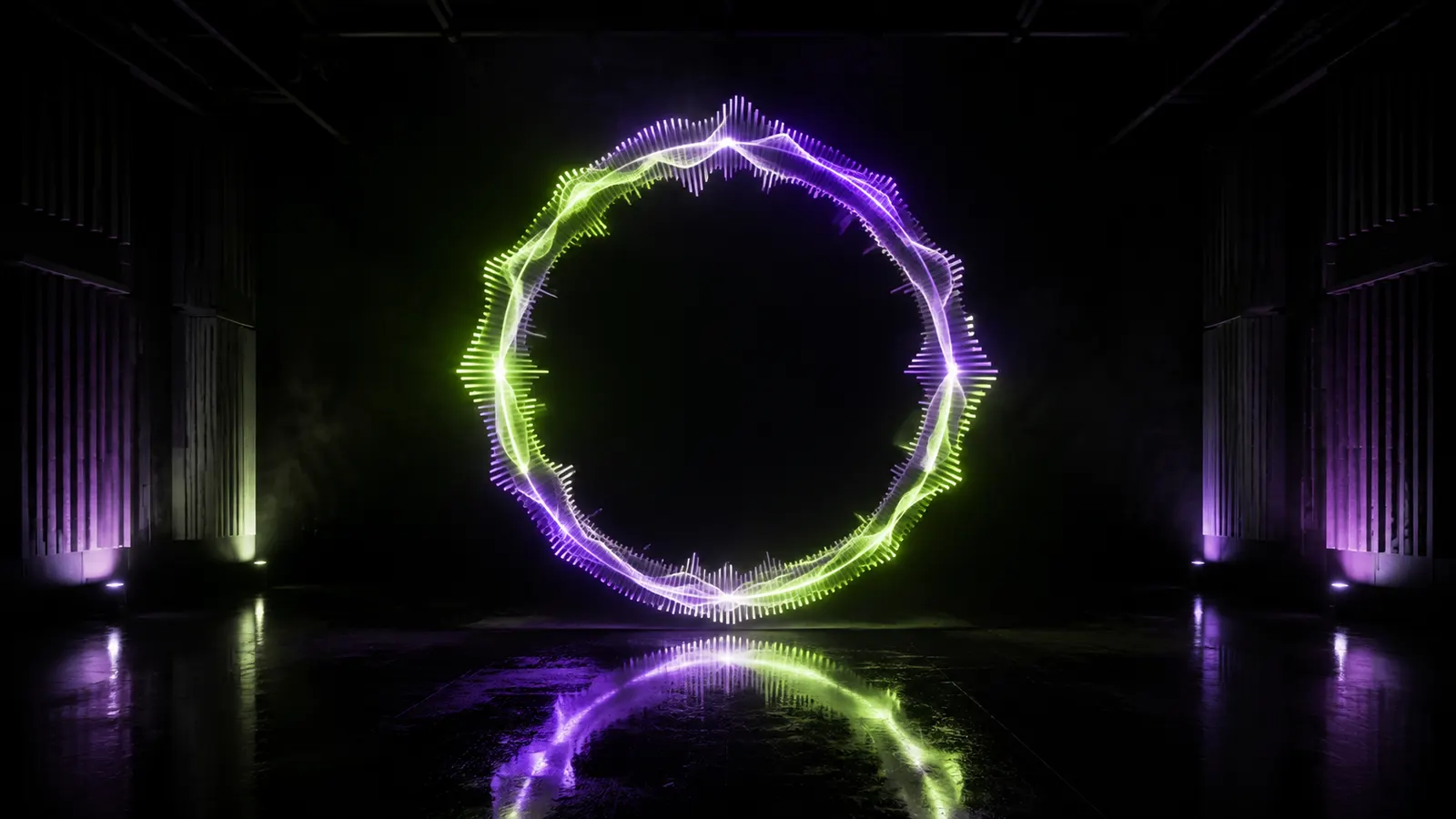
- Build one opening frame with a clear center and repeatable motion.
- Specify a complete motion cycle, not random pulsing.
- Trim on the matching beat and inspect the join without audio first.
Create one complete rhythmic motion cycle around this visualizer. Keep the camera locked and the central form unchanged. Return to the opening composition and motion phase at the end. No cuts, new objects or text.
Feature boundary: Google Flow's example explicitly uses first and last frames. UlazAI's current Gemini Omni interface exposes a first-frame control, not that same two-endpoint Flow workflow. Use the brief above and finish the loop in an editor, or choose a Video Studio model that explicitly offers start and end frames.
Let the storyboard decide the sequence, not the model
The third showcase starts from a premium product storyboard. A storyboard is valuable because it separates decisions: wide shot, detail, use moment, pack shot. Generate those shots individually and keep the product reference unchanged across them.
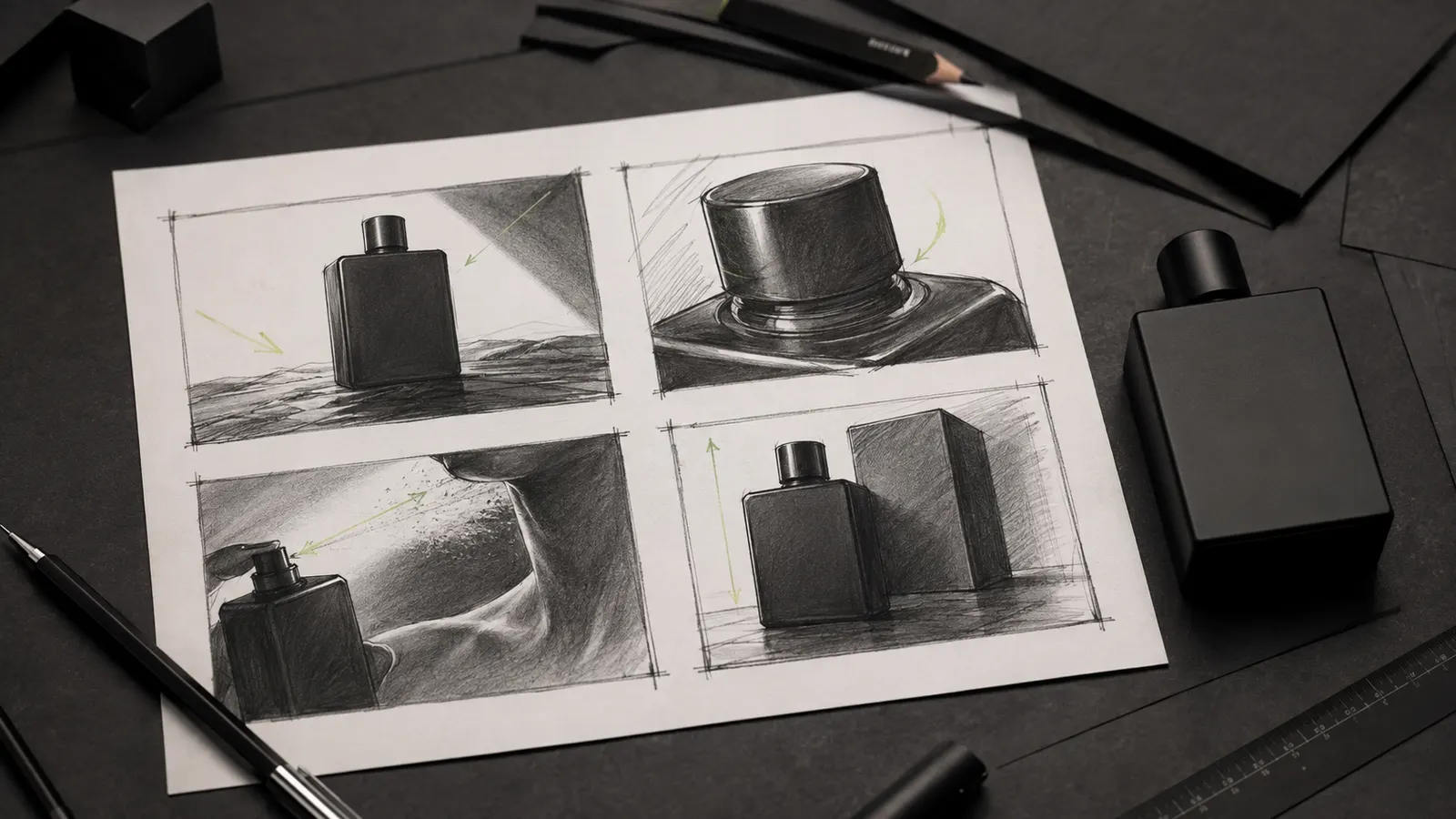
- Write one purpose under every frame.
- Reuse the same product image, palette and lens family.
- Render the risky identity/detail shots first, then spend on transitions.
Turn this product still into a short hero shot. Preserve the product, packaging, logo, colors and claims exactly. Use a slow 35mm push-in, soft directional light and one purposeful use moment. Finish on the original pack composition.
UlazAI's Product story Image Studio recipe gives you that single-shot bridge into Gemini Omni Flash 1.1. It is not a replacement for Flow's Storyboard Studio; it is the practical route for animating each approved frame.
Bring finished artwork to life without redesigning it
The paper-oasis example works because motion is local: foliage moves, water catches light, the camera glides. The miniature remains a miniature. Ask for fewer moving parts and say what may not morph.
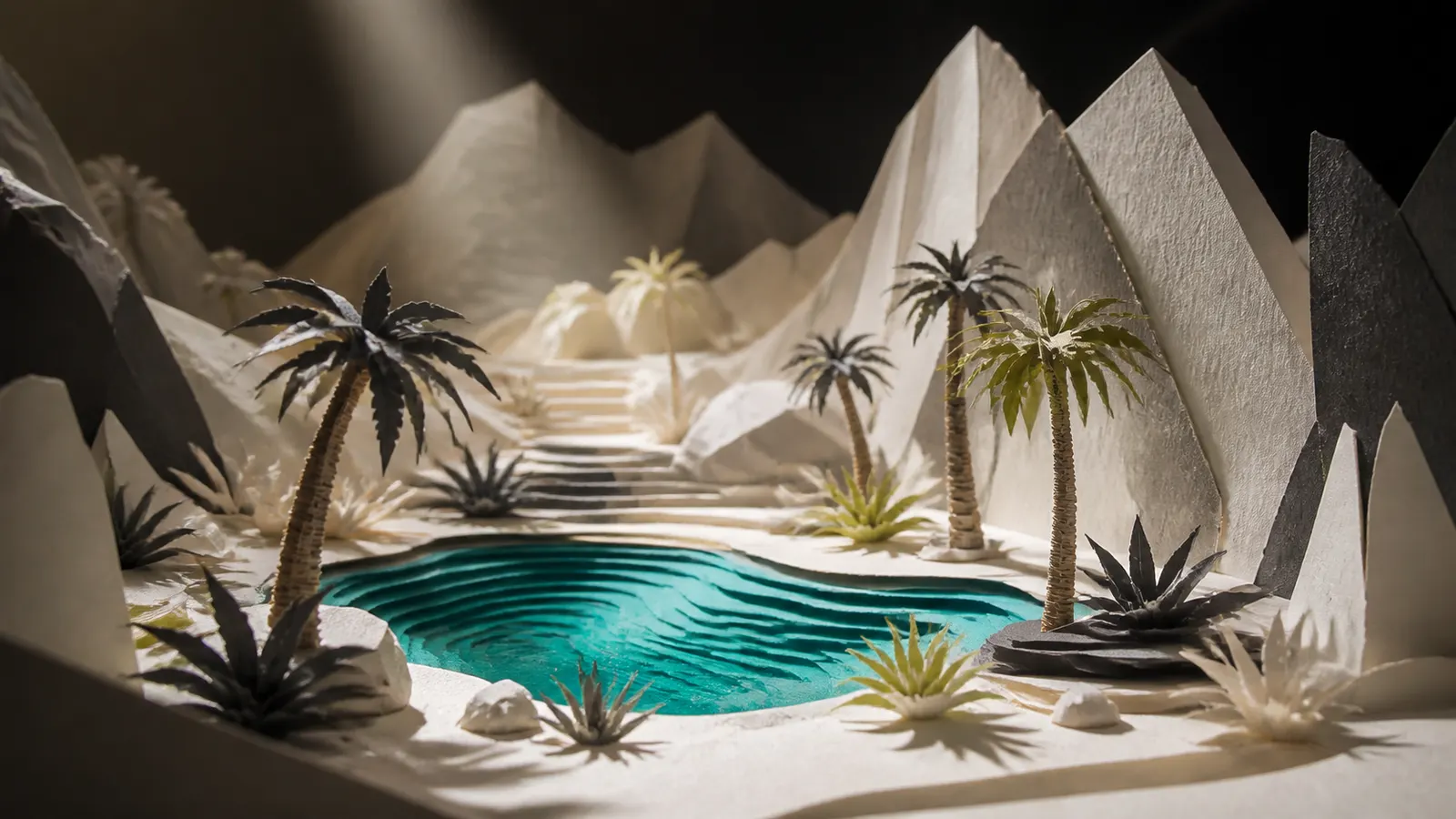
- Pick three motion zones at most.
- Preserve the original medium, composition and scale cues.
- Use a slow camera path that reveals depth without cutting.
Bring this miniature paper scene to life with subtle local movement in the water, foliage and atmospheric light. Preserve the handcrafted paper materials, composition and scale. Use one slow camera glide. No cuts, morphing, new objects or added text.
Choose Living image in Image Studio when you want this exact restraint. The recipe carries the generated image into Omni as the first frame and keeps the prompt editable.
Our take
The reference image is doing more work than the prompt
A strong reference settles shape, palette, texture and composition before the model invents alternatives. That is why the most reusable idea in Google's thread is the plain color swatch mentioned in the logo example. It sounds boring. It is also the sort of boring constraint that keeps a branded render on-brand.
Use prose for motion, camera and timing. Use images for facts the audience will notice when they drift.
The weak point
A perfect first frame can still produce a weak film
These showcases are selected results, not average attempts. Reference control can protect the opening while motion still warps text, changes product geometry or loses the intended endpoint. Storyboards can also create eight expensive mistakes instead of one.
Test the identity-heavy shot first. If the logo, pack or paper construction drifts, tighten that shot before generating the rest. Judge cost per usable clip, not cost per render.
Sources and boundaries
What Google documents, and what UlazAI offers
- Google Flow showcase thread: the four examples discussed above.
- Create videos in Flow: Google's current text, ingredient, frame and editing routes.
- Flow editing and Scenebuilder help: sequencing, trimming, extending and conversational edits.
- Create and manage Flow Tools: reusable mini-tools and their sharing/credit boundaries.
- Gemini Omni Flash 1.1 on UlazAI: current supported inputs, durations, resolutions and credit prices.